Automatically monitor Adobe Sysadmin Changes with I/O Runtime & Teams

March 17, 2026 🍀
The Problem
If you run a large Adobe org, or well, honestly, any size Adobe org, you never want to log into Adobe Admin Console and discover there are dozens of sysadmins that you don’t recognize.
Sysadmins can cause all kinds of havoc to your Adobe deployment. Adding/removing users, assets, components, and data. Staying on top of who's being given elevated access is a real governance and security concern and one that, honestly, I learned the hard way last week.
Somebody logged into Adobe Customer Journey Analytics recently and deleted 45 Connections and 951 Data Views 😱 in one of my test Orgs. I was able to head to the Audit Logs of CJA and discover the username that caused the decimation. And let’s just say they received more than one unkindly worded email!
So I thought - hey, how can I make sure this doesn’t happen again? I thought I was pretty clear when giving others access to my Org that the rule is “Never delete or change something that isn’t yours” but apparently, that’s not enough. I could of course go very heavy-handed and remove all Admins, but that also is just giving myself more work. Like in the Adobe Stock image above, I’d need at least 3 keyboards, 3 monitors, and an iPad Mini from 2012.
Instead, I figured I’d go ahead try to build something - what if I could be alerted every time someone is added as a sysadmin to my Org? Warning: I’m not a coder and although I’m getting better with them, I’m a newb when it comes to APIs. So I used Claude to help build most of this. With Claude by my side, I had everything built from scratch and running in about a day, though I’m confident that a more talented engineer could do this in an even more elegant way.
So in the guide below,I'll walk through the fully automated solution using Adobe I/O Runtime, the User Management API (UMAPI), and a Microsoft Teams webhook. Every 30 minutes, the system checks my org's admin list and posts a Teams alert if anything has changed. I had initially planned on using Slack, but I don’t have access to the Slack API here at Adobe to create apps.
So here’s the Architecture
Adobe I/O Runtime
Cron: every 30 min
⬇️
adminAlert action
⬇️
User Management API
⬇️
Compare current Admins vs previously stored list
⬇️
And here’s what you need
- System Administrator access to an Adobe Admin Console org
- Access to Adobe Developer Console at developer.adobe.com/console
- Node.js installed on your machine (v18 or higher recommended)
- A Microsoft Teams channel where you can add a Workflows webhook
- The ability to follow (and interest in following) my steps below
Step 1: Set up your Teams webhook
(of course, you can use any webhook but this is what I had access to)
First, create an incoming webhook in the Teams channel where you want alerts to appear.
In your Teams channel, click the ellipsis (...) next to the channel name in the left rail
Select Workflows Home
Search for a template called "Send webhook alerts to a channel"
Follow the setup flow — it will generate a webhook URL
Copy and save the webhook URL — it will look like: https://yourorg.webhook.office.com/webhookb2/… you’ll need it a bunch throughout the process.
Note: This uses the newer Workflows app rather than the legacy Connectors. If you don't see Workflows, check with your Teams admin.
Step 2: Create an Adobe Developer Console Project
Head to developer.adobe.com/console and sign in with your Adobe enterprise account.
- Click Create new project
- Click Edit project and rename it to something meaningful, e.g. Admin Role Alert
- Click Add Runtime — this provisions a serverless namespace for your action
- Note your Runtime Namespace — it will look like 53416-188fuchsiastork
Add the User Management API
- Click + Add to Project → API
- Search for and select User Management API
- Choose OAuth Server-to-Server as the credential type
- Click Save configured API
From the credential page, note down these values — you'll need them later:
- Client ID
- Client Secret
- Organization ID (e.g. ABC123@AdobeOrg)
- Technical Account Email
Step 3: Grant the Technical Account Admin Access
The OAuth credential uses a technical account that needs System Administrator rights in your org before it can read the admin list via the API. It’s possible that this is already set up in your org.
- Go to adminconsole.adobe.com and make sure you're in the correct org
- Navigate to Users → Administrators
- Click Add Admin
- Search for the Technical Account Email from your credential page
- Assign the System Administrator role
- Save
Step 4: Install the Adobe CLI
This is where things get fun - it’s time to switch to your MacOS Terminal (or whatever the Windows version of that is). The aio CLI is how you'll deploy and manage your Runtime action from the terminal.
First, check if you have Node.js installed:
node --version
# Should return something like v18.0.0 or higher
If not, download it from nodejs.org and install the LTS version.
Then install the CLI:
npm install -g @adobe/aio-cli
# Verify the installation
aio --version
Step 5: Log in and Connect to your Project
Log in to Adobe from the CLI:
aio login --force
# This opens a browser — log in with your enterprise Adobe ID and be sure to select the correct Login, Org, etc
Next, in the CLI, select your Org, Project, and Workspace. If it works, you should be able to use Arrows to select them.
For me, it didn’t work perfectly.
HINT: You can find the Project number from the URL of your Adobe Runtime Project URL: https://developer.adobe.com/console/projects/53416/4088345607539/overview
Then
Then
Production
Finally, sync the configuration to your local machine:
aio app use
# Select option A to use the global org/project/workspace config
Step 6: Create the Action file
This is where the coding comes in.
In Terminal, browse to the directory where you want to be working from. We’ll use mkdir to create a directory specific to this project:
Next we’re going to create the file. This is the core logic - it authenticates with Adobe, fetches the current list of admins, compares it to the stored list of admins, and if there are any differences, it posts the changes to Teams via webhook. Before you copy and paste this into Terminal, you’ve got 3 things you’ll need to update - all related to “YOUR_NAMESPACE”. I’ve highlighted them in red.
YOUR_NAMESPACE is listed in the Adobe IO Developers Console for your project. It’s auto-assigned by Adobe and here’s where you can find it:
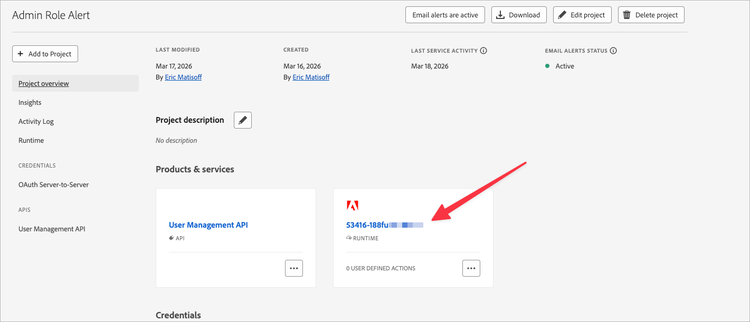
OK. Here’s that code for Terminal:
cat > ~/admin-role-alert/adminAlert.js << 'EOF'
const https = require('https')
// Generic HTTPS request helper
function httpsRequest(options, body) {
return new Promise((resolve, reject) => {
const req = https.request(options, (res) => {
let data = ''
res.on('data', chunk => data += chunk)
res.on('end', () => resolve({ status: res.statusCode, body: data }))
})
req.on('error', reject)
if (body) req.write(body)
req.end()
})
}
// Get an OAuth access token from Adobe IMS
async function getAccessToken(clientId, clientSecret) {
const body = `grant_type=client_credentials&client_id=${clientId}&client_secret=${clientSecret}&scope=openid,AdobeID,user_management_sdk`
const res = await httpsRequest({
hostname: 'ims-na1.adobelogin.com',
path: '/ims/token/v3',
method: 'POST',
headers: {
'Content-Type': 'application/x-www-form-urlencoded',
'Content-Length': Buffer.byteLength(body)
}
}, body)
return JSON.parse(res.body).access_token
}
// Fetch all System Admins from the org via UMAPI
async function getAdmins(orgId, clientId, accessToken) {
const encodedOrg = encodeURIComponent(orgId)
let allAdmins = []
let page = 0
let lastPage = false
while (!lastPage) {
const res = await httpsRequest({
hostname: 'usermanagement.adobe.io',
path: `/v2/usermanagement/users/${encodedOrg}/${page}/_org_admin`,
method: 'GET',
headers: {
'Authorization': `Bearer ${accessToken}`,
'X-Api-Key': clientId,
'Content-Type': 'application/json'
}
})
const data = JSON.parse(res.body)
if (data.result !== 'success') throw new Error(`UMAPI error: ${data.message}`)
allAdmins = allAdmins.concat((data.users || []).map(u => u.email))
lastPage = data.lastPage
page++
}
return allAdmins
}
// Save the current admin list back to the action's own parameters
async function storeAdmins(owAuth, admins) {
const authKey = Buffer.from(owAuth).toString('base64')
const getRes = await httpsRequest({
hostname: 'adobeioruntime.net',
path: '/api/v1/namespaces/YOUR_NAMESPACE/actions/adminAlert',
method: 'GET',
headers: { 'Authorization': `Basic ${authKey}` }
})
const currentAction = JSON.parse(getRes.body)
const params = (currentAction.parameters || []).filter(p => p.key !== 'STORED_ADMINS')
params.push({ key: 'STORED_ADMINS', value: admins })
const body = JSON.stringify({
namespace: 'YOUR_NAMESPACE',
name: 'adminAlert',
exec: currentAction.exec,
parameters: params,
annotations: currentAction.annotations || [],
limits: currentAction.limits || {}
})
await httpsRequest({
hostname: 'adobeioruntime.net',
path: '/api/v1/namespaces/YOUR_NAMESPACE/actions/adminAlert?overwrite=true',
method: 'PUT',
headers: {
'Authorization': `Basic ${authKey}`,
'Content-Type': 'application/json',
'Content-Length': Buffer.byteLength(body)
}
}, body)
}
// Post an Adaptive Card to Microsoft Teams
async function postToTeams(webhookUrl, message) {
const urlObj = new URL(webhookUrl)
const body = JSON.stringify({
type: 'message',
attachments: [{
contentType: 'application/vnd.microsoft.card.adaptive',
content: {
type: 'AdaptiveCard',
version: '1.4',
body: [
{ type: 'TextBlock', text: '🚨 Adobe Admin Role Change', weight: 'Bolder', size: 'Medium' },
{ type: 'TextBlock', text: message, wrap: true }
]
}
}]
})
await httpsRequest({
hostname: urlObj.hostname,
path: urlObj.pathname + urlObj.search,
method: 'POST',
headers: { 'Content-Type': 'application/json', 'Content-Length': Buffer.byteLength(body) }
}, body)
}
// Main action entry point
async function main(params) {
const { CLIENT_ID, CLIENT_SECRET, ORG_ID, TEAMS_WEBHOOK_URL, OW_AUTH, STORED_ADMINS } = params
// Authenticate and fetch current admins
const accessToken = await getAccessToken(CLIENT_ID, CLIENT_SECRET)
const currentAdmins = await getAdmins(ORG_ID, CLIENT_ID, accessToken)
const currentSet = new Set(currentAdmins)
// STORED_ADMINS is decrypted and injected automatically by Runtime
const previousAdmins = STORED_ADMINS
? (Array.isArray(STORED_ADMINS) ? STORED_ADMINS : JSON.parse(STORED_ADMINS))
: null
// First run — save baseline, no alert
if (!previousAdmins) {
await storeAdmins(OW_AUTH, currentAdmins)
return {
statusCode: 200,
body: JSON.stringify({ message: 'Initial admin list saved', count: currentAdmins.length })
}
}
// Diff the lists
const previousSet = new Set(previousAdmins)
const newAdmins = currentAdmins.filter(email => !previousSet.has(email))
const removedAdmins = previousAdmins.filter(email => !currentSet.has(email))
// Alert on changes
for (const email of newAdmins) {
await postToTeams(TEAMS_WEBHOOK_URL,
`🚨 **New admin added:** ${email} has been granted System Admin access.`)
}
for (const email of removedAdmins) {
await postToTeams(TEAMS_WEBHOOK_URL,
`ℹ️ **Admin removed:** ${email} has had System Admin access removed.`)
}
// Persist updated list
await storeAdmins(OW_AUTH, currentAdmins)
return {
statusCode: 200,
body: JSON.stringify({ newAdmins, removedAdmins })
}
}
exports.main = main
EOF
Step 7: Get your Runtime Auth Key
In order to deploy the code above, which is saved in a file on your computer, to Adobe so that it can be run by Adobe IO, you’ll need one more key, the Runtime Auth Key. Here’s how you get it from Terminal. Just run this code:
It should return something like:
c53871a4-a5d6-4db5-9503-c07e2310cd00:VaQGVX…
Save this in the same place that you saved all of your other important keys, like Client ID, Client Secret, etc. You’ll need them in the next step.
Step 8: Deploy the Action to Adobe IO
OK. Take a breather. Or get a coffee. Or … another coffee. We’re in the home stretch!
It’s time to Deploy this code to Adobe so that it can run server-side. Here’s what you’re dropping into Terminal:
aio rt action create adminAlert adminAlert.js \
--param CLIENT_ID "your-client-id" \
--param CLIENT_SECRET "your-client-secret" \
--param ORG_ID "XXXXXXXX@AdobeOrg" \
--param TEAMS_WEBHOOK_URL "https://your-teams-webhook-url" \
--param OW_AUTH "your-ow-auth-key" \
--web true
Make sure you’re updating all the variable values (CLIENT_ID, CLIENT_SECRET, ORG_ID, TEAMS_WEBHOOK_URL, and OW_AUTH.
Step 9: It’s Time to Test!
You’ve made it to testing time! Here’s how you can manually run the action in order to get a baseline count of the number of sysadmins in your Org:
The results will be an object that contains something like this:
{ "message": "Initial admin list saved", "count": 47 }
You’ll then want to add a sysadmin to your Admin Console so you can see if everything is wired up properly. Once you’ve done that, run the same code from above to invoke the action again. Your new sysadmin should show up in the response, like this:
{ "newAdmins": ["testuser@company.com"], "removedAdmins": [] }
Try removing that test sysadmin again and you’ll see the email listed in the removedAdmins array.
Did it work?? I hope so!! Cool, right? You should also see the post in your Teams channel as well.
Step 10: Set up the Cron Trigger
Our last step is to tell the system to automatically run that action every 30 minutes. The good news is that all of that work happens server-side. You don’t need your computer to be turned on, to be logged in, or anything. It happens automatically!
First, create the alarm trigger:
aio rt trigger create adminAlertTrigger \
--feed /whisk.system/alarms/alarm \
--param cron "0,30 * * * *"
Then connect that trigger to your action:
And finally, verify that everything is wired up correctly:
The result should show a status of “active”.
Huzzah!
You did it! You earned yourself another coffee, or beer, or at least a healthy high five from a friend or coworker. Let’s go through a few handy commands and considerations before you go:
And if you want to make any updates to the JS file on your computer (you can do this as we have been doing in Terminal or, if you’re like me, just edit the JS file directly and save it in Sublime Text or whatever), you can always UPDATE the file on the Adobe IO server by running this code (note how it’s slightly different from the code run in Step 8 which creates the action, this updates it.
aio rt action update adminAlert adminAlert.js \
--param CLIENT_ID "your-client-id" \
--param CLIENT_SECRET "your-client-secret" \
--param ORG_ID "XXXXXXXX@AdobeOrg" \
--param TEAMS_WEBHOOK_URL "https://your-teams-webhook-url" \
--param OW_AUTH "your-ow-auth-key" \
--web true
Huzzah indeed!
Go forth and Monitor your Sysadmins, you Rockstar you!