Adding Related Articles in Edge Delivery Services

July 29, 2026
If you’ve been browsing this site recently, you may have noticed a new feature at the bottom of the articles: a list of Related Articles! And I’ve never been one to avoid using Adobe tools (proof), so I figured - “hey, let’s use Adobe Target to do this!” Now I’ve used Target’s Recommendations feature before, but never on a site that used Edge Delivery Services. So I was excited to take on the task!
There were a number of key steps along the way, each of which I’m happy to walk through in more detail:
- Creating article metadata
- Setting up Target and my Datastream
- Passing that metadata to Target
- Setting up Recommendations in Target
- Updating my EDS deployment (related-article block, script to handle the JSON from Target)
- Deploy (hold onto your butts.gif)
Step 1: Metadata Time
Luckily (well, for this project, perhaps not for you), I only have like 15 articles on my site. So it wasn’t that hard to create metadata associated with them. Nonetheless, I asked Claude for help to generate categories for them. When I told Claude why I wanted to generate them, it was recommended that I create the following types of metadata: tags, category, products, content_type, level, and published_date.
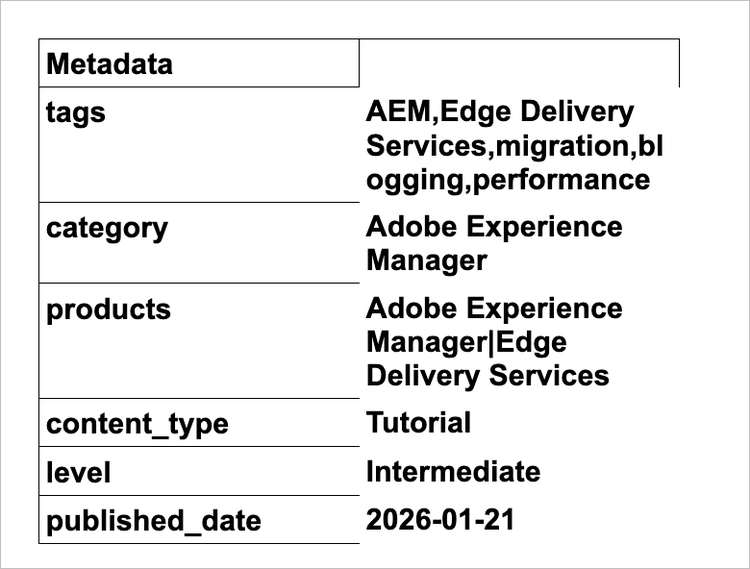
I then needed to drop each of the resulting pieces of metadata into each article, but I didn’t know how to do that with EDS. Thankfully there is a stock Metadata block that ships with the EDS boilerplate. So all I needed to do was create a table like this and drop it into the top of each article. EDS took care of the rest.
If you view source on this page, you’ll see this code is embedded in the HTML:
<meta property="article:tag" content="AEM">
<meta property="article:tag" content="Edge Delivery Services">
<meta property="article:tag" content="migration">
<meta property="article:tag" content="blogging">
<meta property="article:tag" content="performance">
<meta name="category" content="Adobe Experience Manager">
<meta name="products" content="Adobe Experience Manager|Edge Delivery Services">
<meta name="content_type" content="Tutorial">
<meta name="level" content="Intermediate">
<meta name="published_date" content="2026-01-21">
Step 2: Target and Datastream Setup
Next comes a relatively simple step: setting up Target and your Datastream in AEP.
For me, it was relatively painless adding Target to the Datastream, but depending on your setup, you may want to add a Property Token or Environment ID.
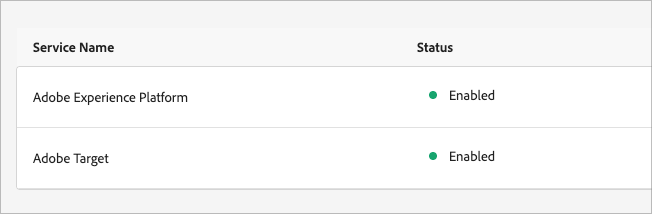
You’ll also want to make sure that personalization is enabled in the martech library configuration. Look into the setup in the scripts.js file to ensure consent is being captured and is correctly deploying personalization.
Step 3: Get that metadata to Target
Adobe Target doesn’t know by default to pull in those meta tags that we created in Step 3. In Adobe Target, these types of things are called entities, so we have to push a little code into EDS to send the metadata as entities for Target to consume. While we’re editing code, we might as well also build the code that handles the response from Target to create the Related Articles block.
First, Claude and I generated a martech-entity.js file. You can find that one right here.
Next, we had to update the scripts.js file to load those entities into the payload for Target.
Edits made include…
At the top:
Enhancing the onBeforeEventSend callback method to incorporate the Entity data:
onBeforeEventSend: (payload) => {
payload.data.__adobe.target ||= {};
const entity = getEntityData();
if (entity) Object.assign(payload.data.__adobe.target, entity);
payload.data.__adobe.analytics ||= {};
},
Then telling EDS to automatically append the Target Recommendations block (Related Articles) at the bottom of each article:
function buildRelatedArticles(main) {
// Only the document's real main content area, not header/footer fragments.
if (main !== document.querySelector('main')) return;
// Articles only. The metadata is the signal.
if (!getMetadata('category') && !getMetadata('article:tag')) return;
// Never place twice.
if (main.querySelector('.related-articles')) return;
const section = document.createElement('div');
section.append(buildBlock('related-articles', ''));
main.append(section);
}
function buildAutoBlocks(main) {
try {
buildHeroBlock(main);
buildRelatedArticles(main);
} catch (error) {
// eslint-disable-next-line no-console
console.error('Auto Blocking failed', error);
}
}
Finally, I needed to create the related-articles EDS blocks. You can see the JS here:
https://blog.ericmatisoff.com/blocks/related-articles/related-articles.js
And the CSS here:
https://blog.ericmatisoff.com/blocks/related-articles/related-articles.css
Once all of this live, you can QA three key things that are now deployed:
- Meta Tags are loaded in the Page Source
- Entities are passed in the Web SDK event (you can check this through the AEP Debugger or in the Network debugger in your browser, filtered to edge.adobe)
- Entities begin loading into Adobe Target > Recommendations > Catalog Search (there may be a short delay in these getting loaded in)
Step 4: Target Recommendations recommendations
OK, give yourself a pat on the back. Or get a coffee, whatever you need. You’ve got all the code deployed, and now it’s time to build the algorithm in Target Recs.
There’s three things we need to do in Target:
- Build the algorithm as Criteria
- Send the details in JSON as Design
- Create the Activity
Criteria:
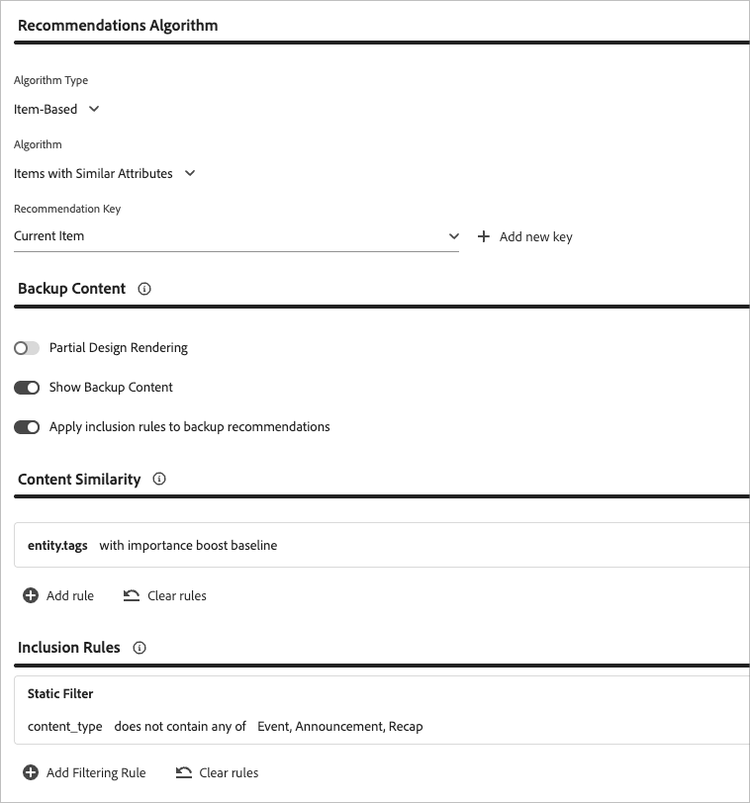
I went with the settings below. In short, it’s saying look at the current item, then recommend other items with the same tags. But exclude Events, Announcements, and Recaps. That way the London Summit article from 2025 isn’t recommended to people reading the London Summit article from 2026 (as it’s irrelevant).
Design:
Then you have to create the Design for the output. Since EDS is expecting this to be JSON, here’s what I used:
## entity check: $entity1.id
{
"recommendations": [
{ "id": "$!entity1.id", "name": "$!entity1.name", "url": "$!entity1.pageUrl", "thumbnail": "$!entity1.thumbnailUrl", "category": "$!entity1.category" },
{ "id": "$!entity2.id", "name": "$!entity2.name", "url": "$!entity2.pageUrl", "thumbnail": "$!entity2.thumbnailUrl", "category": "$!entity2.category" },
{ "id": "$!entity3.id", "name": "$!entity3.name", "url": "$!entity3.pageUrl", "thumbnail": "$!entity3.thumbnailUrl", "category": "$!entity3.category" },
{ "id": "$!entity4.id", "name": "$!entity4.name", "url": "$!entity4.pageUrl", "thumbnail": "$!entity4.thumbnailUrl", "category": "$!entity4.category" },
{ "id": "$!entity5.id", "name": "$!entity5.name", "url": "$!entity5.pageUrl", "thumbnail": "$!entity5.thumbnailUrl", "category": "$!entity5.category" }
]
}
Activity:
This is where it all comes together. Drop in related-articles as the location (you may have to manually type this in), then select your Collection (since I use Target Recs for other things, I created a Collection of just my blog articles that excludes other stuff), my JSON Design, and my Criteria. Target then suggested a 90/10 split for Targeting. Finally, I set up a goal of Engagement > Page Views.
Step 5: Deploy
That should be that! Just make sure everything is published and then Activate the Activity in Target!
You’ll see new calls in the AEP Debugger, Related Articles at the bottom, and you’ll hopefully be driving increased content engagement before you know it!
Go forth and create Related Articles blocks in EDS like this (you Rockstar you):